Monitoring Received Messages from Employees
Summary
This document addresses work instructions for how to use Employee Messaging.
Employee Messaging
The Messages tab allows users to start, view and reply to individual employee messages. Users may delete the conversation or reply to the message. If deleted, messages are permanently removed from the system.
To Access Employee Messages:
1. Search for an employee
2. Access the timecard of the employee whose information is wanted.

3. Select Personal Information the timecard drop-down menu (Figure 2).
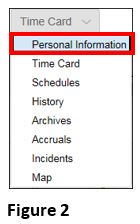
Note: The menu header will change to the last selection clicked on. For instance, if Schedules was last accessed, the drop-down showing will be Schedules.
4. The Personal Information view will appear (Figure 3).
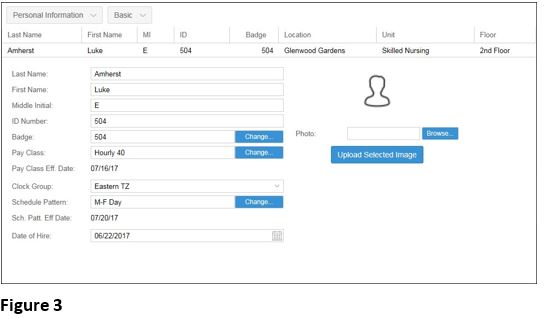
5. Select Basic next to the Personal Information button. A drop-down menu will appear; select Messages (Figure 3).

To Start a Conversation
1. Select New Message (Figure 1).

2. The Reply to <Employee Name> window will appear; enter the following (Figure 2).
a. Select a priority option.
b. A Subject.
c. The Message.
d. Select to Send a Copy via Email and verify the email address.
e. Click OK.

3. The message will be displayed for the employee in their Employee Portal under the Messages tab (if used) and a copy sent to their email if selected. The message will also display in the Conversation area (Figure 3).

To Reply to a Conversation
1. Click the Pencil and Folder button  (Figure 1).

2. The Reply to <Employee Name> window will appear; enter the following (Figure 2).
a. Select a priority option.
b. A Subject (if different from default).
c. The Message.
d. Select to Send a Copy via Email and verify the email address.
e. Click OK.

3. The message will be displayed for the employee in their Employee Portal under the Messages tab (if used) and a copy sent to their email if selected. The message will also be added to the Conversation area.
To Delete a Message
1. Click the Scissor button (Figure 1).

2. The Remove Message window will appear (Figure 2).
a. Check the Confirm Remove Message checkbox.
b. Click OK.

To Delete a Conversation
1. Click on the “X” button (Figure 1).

2. The Remove Conversation window will appear (Figure 2).
a. Check the Please Confirm checkbox
b. Click OK
