How to Register a New Device for Time Terminal
Summary
This document demonstrates how to register a new device for Time Terminal.
Registering a New Device
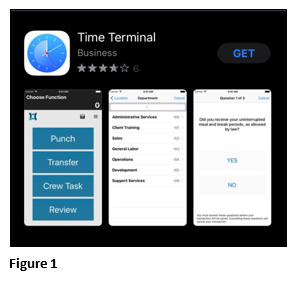
1. From the App Store, find and install the Time Terminal App (Figure 1).
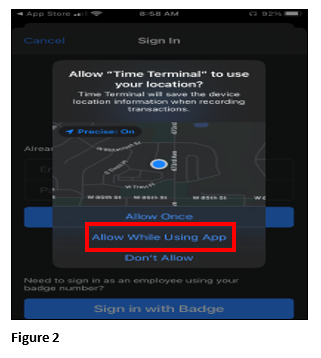
2. Select Allow While Using App for location (Figure 2).
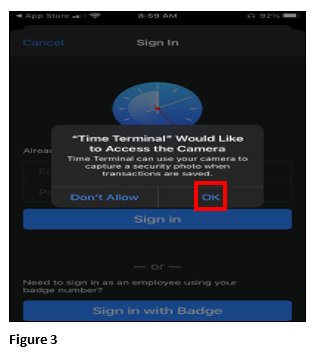
3. Select Allow While Using App for camera (Figure 3)
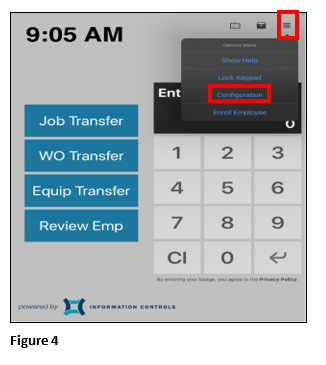
4. Once the app has opened, click the Hamburger Menu and Configuration (Figure 4).
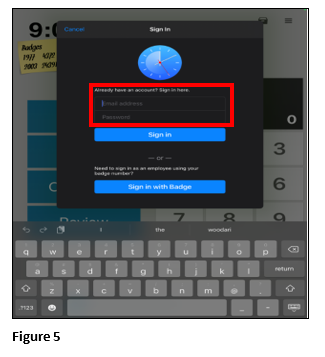
5. Enter the User Name and Password for the Time Terminal Portal. Click Sign In (Figure 5).
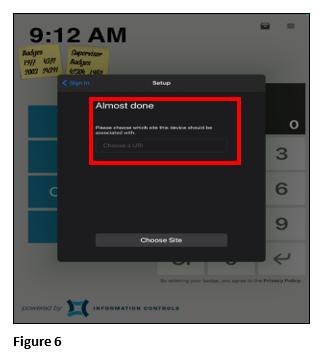
6. Enter your companies URI for the site for the device to associate with (Figure 6).
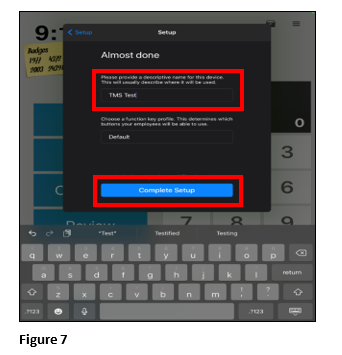
7. Enter a Description for the device and select the default Profile. Click Complete Setup (Figure 7).
8. The device will now show the button options from the Default template (Figure 8).

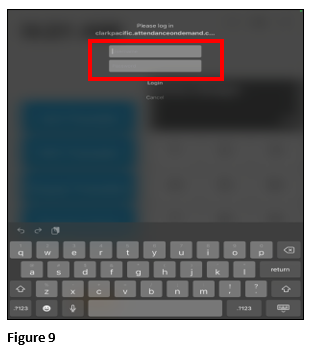
9. Once the supervisor selects one of the Transfer buttons, they will be asked for credentials to the TMS time and attendance database. Please note that after the initial request for credentials for the transfer, the supervisor will no longer be asked for this information (Figure 9).