How to See Employee Details in GeoZones
Summary
This document addresses work instructions on how to see employees’ details in GeoZones.
Some organizations use GeoZones for their employees. GeoZones are a virtually boundary drawn around a real-world geographic and are used to both track and limit where an employe may perform some actions like punching and transferring. Please note that GeoZone and their accuracy are dependent on the employees cell phone carrier and the location of the cell tower to the GeoZoned area.
How to See GeoZone Details
- From the employee’s timecard, use the dropdown and select Map (Figure 1).
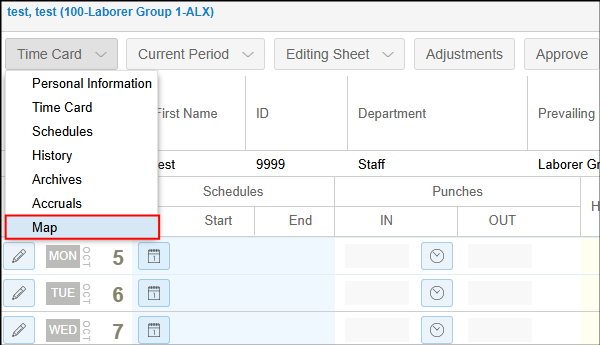
Figure 1 - Each day with punches will display a green box with a number with the number representing the amount of times the employee’s cell phone pinged its tower as well as general pin drops on the map. To see the specific GeoZone where the punches occurred, click the date. The general pin drop may be clicked as well and will display specific information about the transaction (Figure 2).
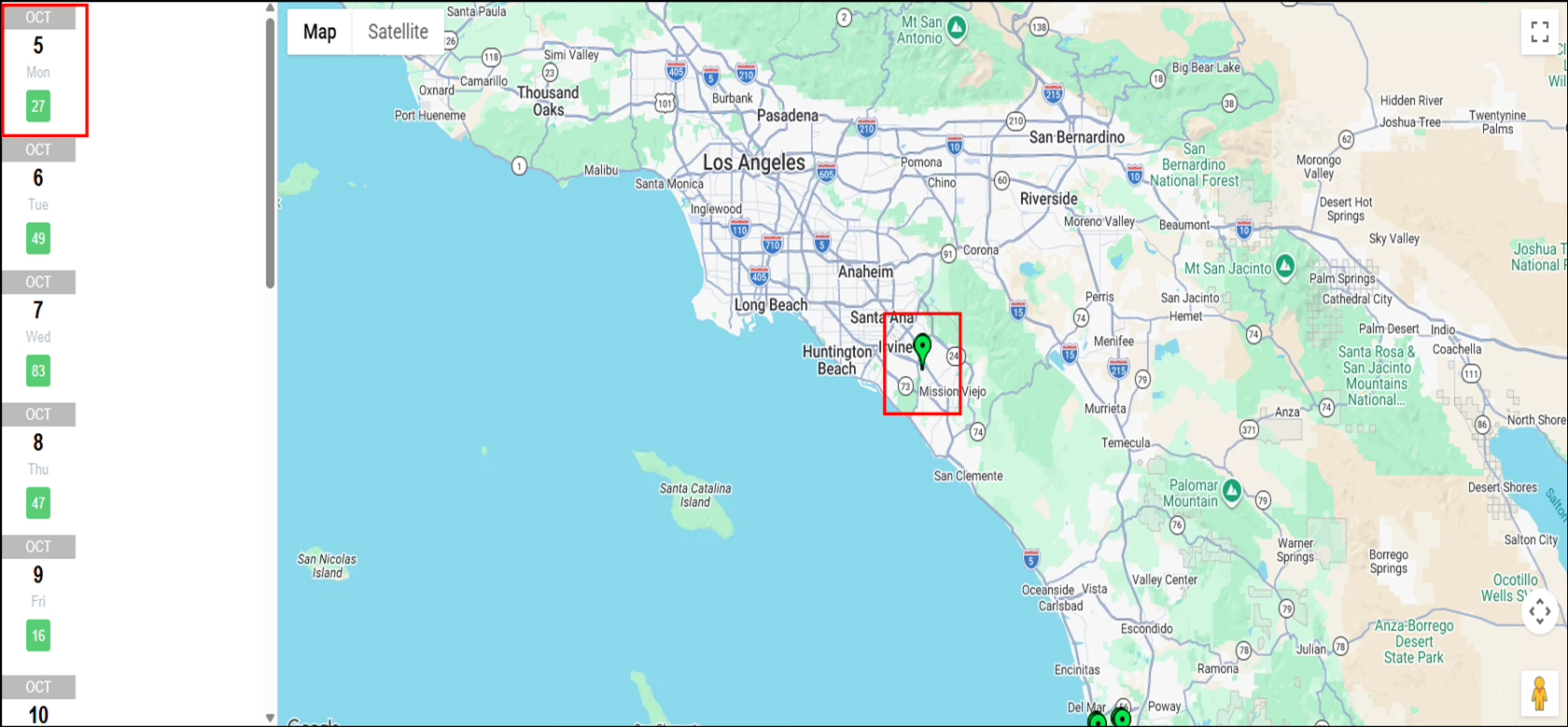
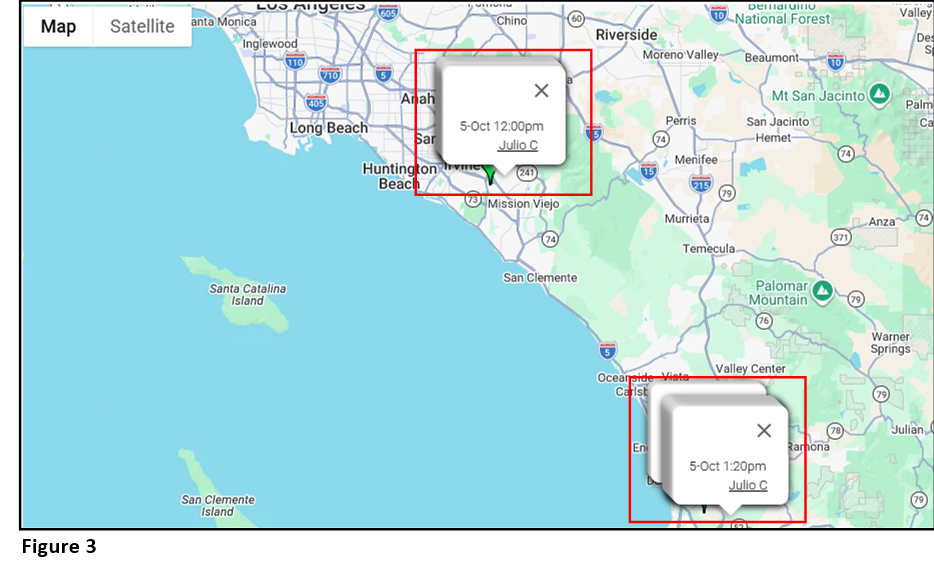
Figure 2 - Upon clicking the date, the map will display punch information (Figure 3).
- Users may drill into see the GeoZone and punch locations by clicking on the directional arrow and continuously on the ‘+’ (Figure 4).
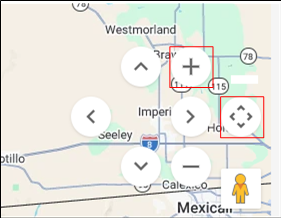
Figure 4 - The GeoZone with the punches will display. Each individual pin can be selected to see the punch details. (Figure 5).
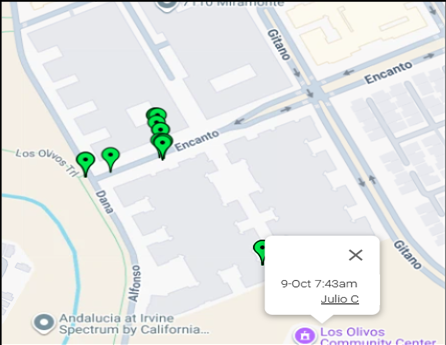
Figure 5 - To see specific information regarding employees’ punches, click the Details menu and GPS Registrations. The Details will show each time the employee’s cell phone attempted to ping its closest tower, until it finally connects. It is plausible that the cell phone attempts multiple times and upon finally registering, the time has moved forward. As an example, an employee could attempt to punch at 8am, but the tower ping happens at 8:01. In this situation, a manager may make the decision to alter the employee’s punch back to 8am from the timecard. If Prevented is displayed in the Results column, that’s an indication that location services have been turned off (Figure 6).
- There are other display options that can be viewed as will including the Satellite view (Figure 7).
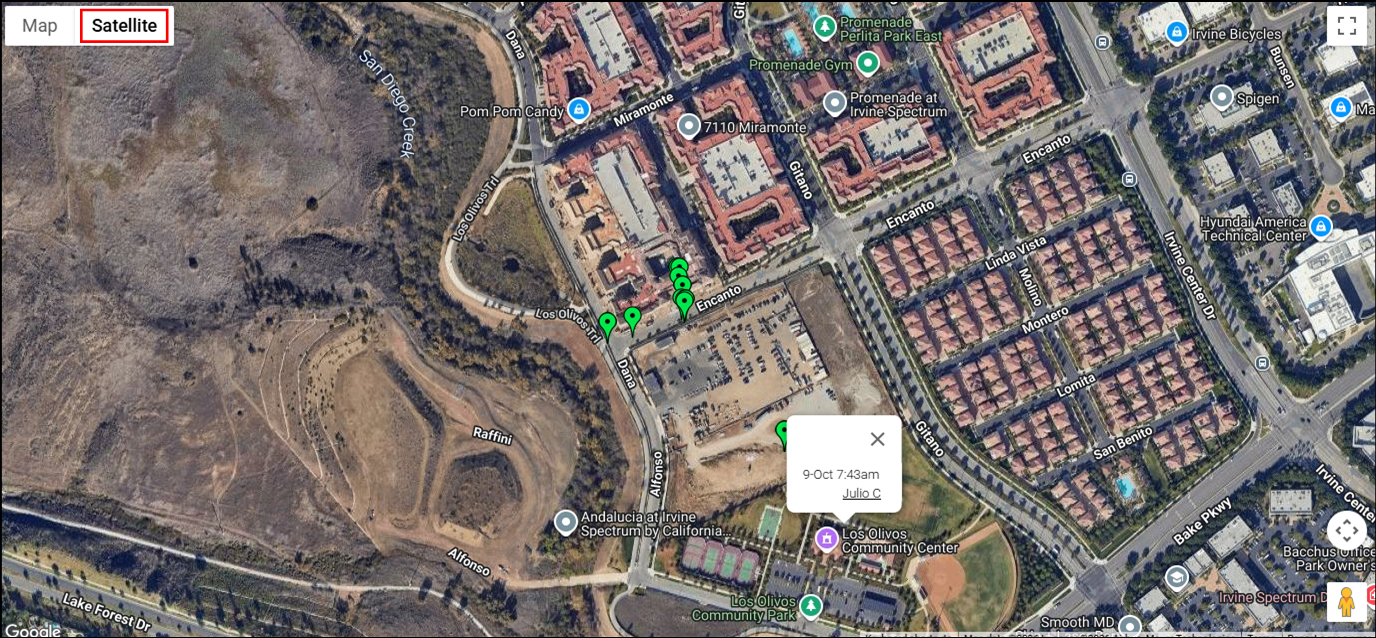
Figure 7 - Managers can see how the GeoZone has been configured by opening System Setup and Geographical Zones (Figure 8).
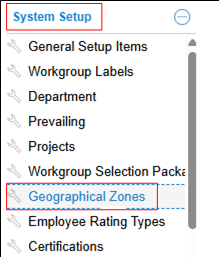
Figure 8 - A list of configured GeoZones will display (Figure 9)
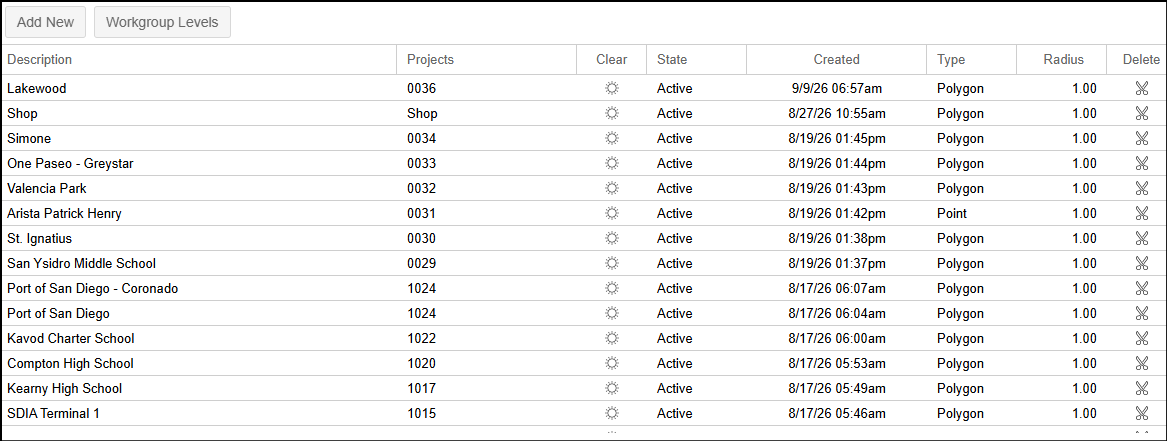
Figure 9 - Double click on the GeoZone to review and it will reveal on the Map (Figure 10). Please note, GeoZones should only be created and modified by TMS.
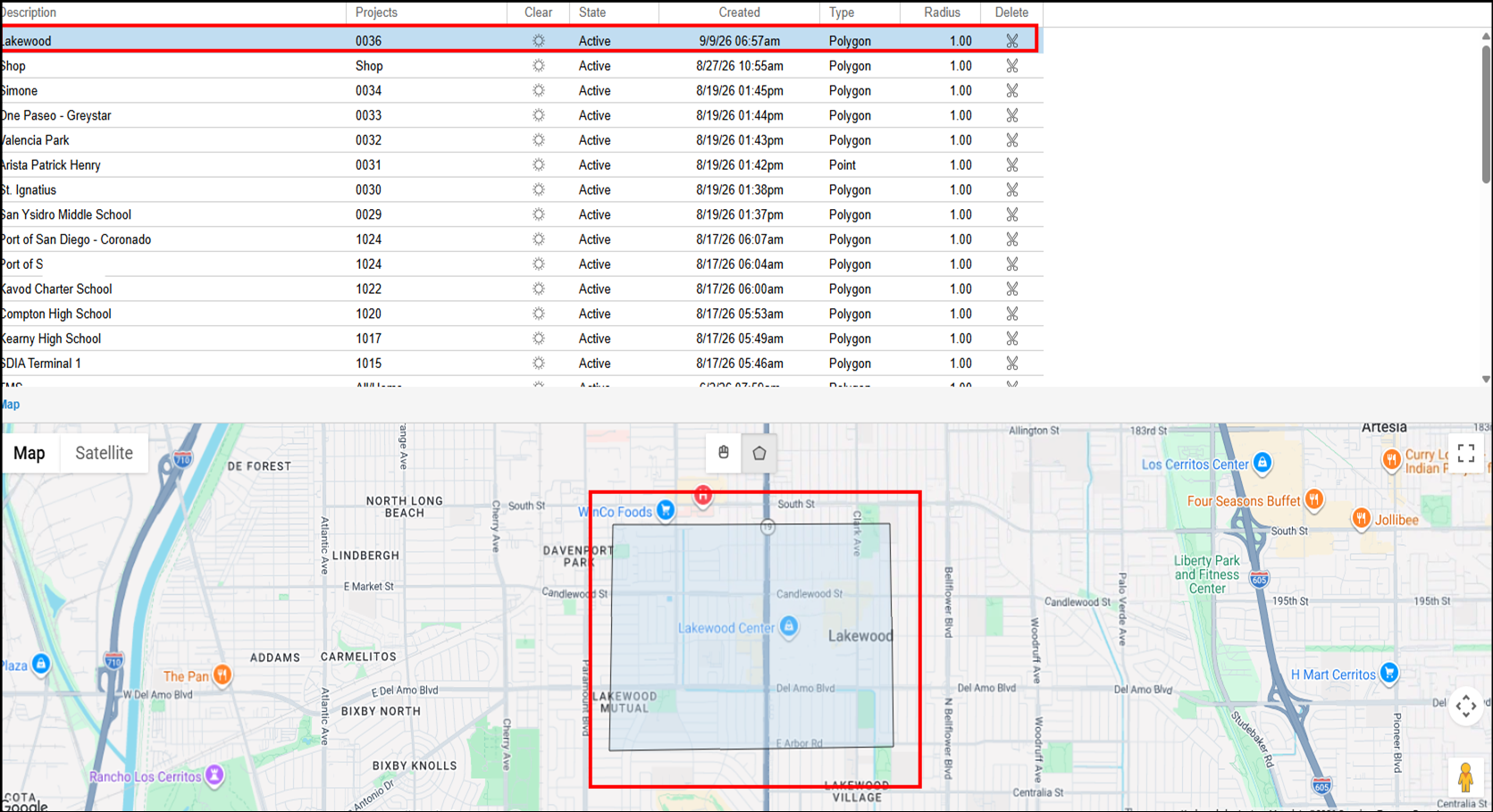
Figure 10