Adding Certifications
Summary
This document addresses work instructions for how to access and add Certifications from the employee Personal Information page.
Certifications
The Certifications tab allows users to add certifications to employees. Certifications are used to help identify employees with special certified skills.
Note: If certifications are configured and turned on in the system, they will appear in an employee’s Personal Information page.
To Access the Certification Section From the Personal Information Page:
1. Search for an employee
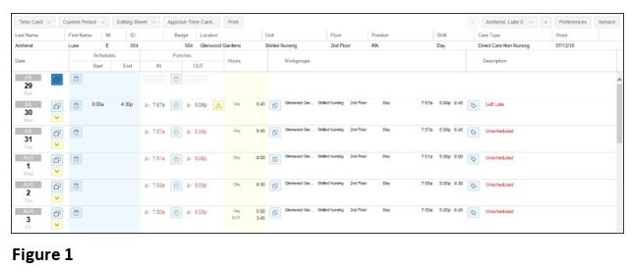
2. Access the timecard of the employee whose information is wanted (Figure 1).
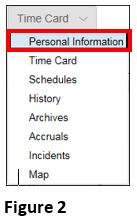
3. Click on the timecard drop-down menu and Personal Information (Figure 2).
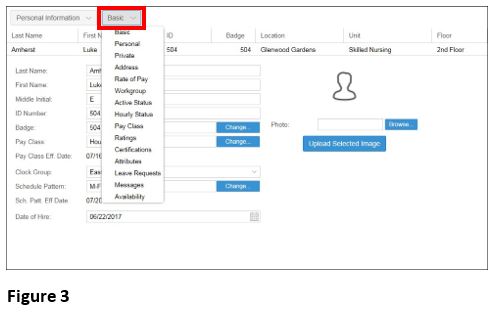
4. Click on Basic next to the Personal Information button. A drop-down menu will appear (Figure 3).
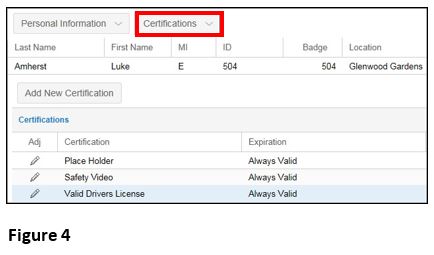
5. Select Certifications from the menu options (Figure 4).
Assigning Certifications
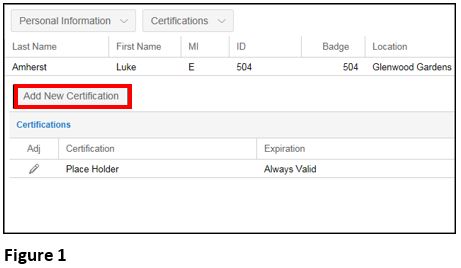
1. Click Add New Certification from the Certification tab (Figure 1).
2. The Add Employee Certification window will appear (Figure 2).

3. Select a pre-configured certification from the Certification drop-down menu.
4. Select the Expiration Management from the drop-down menu and click OK.
Properties for the Employee Certifications are as follows